Quick Answer: What Is Software Compatibility Testing?
Software compatibility testing is the process of checking whether software works correctly across different browsers, devices, operating systems and connected services. It helps businesses find problems before releasing updates. As a result, teams can protect key features, improve user experience and reduce the risk of service disruption.
What Is Software Compatibility Testing?
Software compatibility testing is a quality check that confirms whether an application works as expected in different technical environments.
For example, a website should display correctly on supported browsers. A mobile app should also work on the devices and operating systems it supports.
The aim is simple: users should be able to complete their tasks without technical problems.
This process covers several areas:
- Browsers: Chrome, Firefox, Safari and Edge.
- Operating systems: Windows, macOS, Android and iOS.
- Devices: Desktops, laptops, tablets and smartphones.
- Screen sizes: Small mobile screens and larger displays.
- Connected services: APIs, databases, payment tools and other platforms.
For websites, this work often includes cross-browser testing. MDN Web Docs explains why websites need checks across different browsers and devices.
Why Do Software Updates Cause Problems?
An update can improve a system. It may fix a bug, add a feature or improve security. However, it can also affect parts that worked well before.
Consider an online store that changes its checkout page. The new page may work on a laptop but fail on some mobile browsers. Customers may then struggle to place orders.
Several factors can cause these problems.
- Browser changes: Different browsers may display the same page in different ways.
- System updates: A new operating system version may affect an application.
- Old components: Older libraries may not support new software requirements.
- Connection errors: An update may affect APIs or third-party services.
- Screen differences: A page may look fine on a desktop but break on a phone.
- Data changes: A new database structure may affect saved records.
Therefore, teams should check more than the installation process. They should also review the features people use every day.
What Are the Benefits of Compatibility Testing?
A planned review can help businesses avoid common technical problems.
| Benefit | Business value |
|---|---|
| Fewer errors | Find problems before users report them. |
| Better user experience | Keep key tasks simple across supported devices. |
| Less disruption | Reduce the risk of failed releases. |
| Feature protection | Make sure existing functions still work. |
| Reliable connections | Keep data moving between connected systems. |
| Easier support | Give technical teams useful records for future fixes. |
These checks cannot prevent every possible issue. However, they help teams find risks earlier and respond faster.
What Are the Main Types of Compatibility Testing?
The type of review depends on the software and its users. Five common types are listed below.
1. Browser Compatibility Testing
This review checks whether a website works across supported browsers.
It covers page layouts, menus, forms, buttons, images and interactive features.
For example, a contact form should allow users to enter and submit details in each browser the website supports.
2. Operating System Compatibility Testing
This review checks whether an application works on its supported operating systems.
A desktop app may need to work on Windows and macOS. A mobile app may need to support Android and iOS.
Teams should check installation, login and key features.
3. Device Compatibility Testing
People use different devices to access websites and apps.
This review checks whether text is easy to read, buttons are easy to use and pages fit the screen. It also checks whether key features work on supported devices.
4. Backward Compatibility Testing
This process checks whether a new version still works with older supported versions, files or systems.
It is useful when a business cannot update every device or connected platform at the same time.
5. Integration Compatibility Testing
Many business applications connect with other tools.
These may include:
- CRM and ERP platforms.
- Payment gateways.
- Login services.
- APIs and databases.
- Email and notification tools.
The goal is to make sure these connections still work after a change.
Compatibility Testing vs. Regression Testing
These two methods support software quality, but they check different things.
| Compatibility testing | Regression testing |
|---|---|
| Checks software across different environments. | Checks whether existing features still work after a change. |
| Focuses on browsers, devices and operating systems. | Focuses on functions affected by an update. |
| Example: Test checkout on mobile Safari and Chrome. | Example: Check whether login still works after changing checkout. |
Both methods are useful before a major release.
How Can Businesses Prevent Problems After Updates?
A clear release process helps teams find issues before users face them.
Step 1: Review the Changes
First, list what the update will change.
Identify affected pages, features, system needs and connected services. This helps the team decide what to review.
Step 2: Choose Browsers and Devices
Do not try to check every possible device.
Instead, focus on the environments your users rely on. Website analytics and customer feedback can help you choose them.
MDN's testing strategies also explain how to select suitable browsers and devices.
Step 3: Prepare a Staging Environment
A staging environment is a separate copy of an application used before a live release.
It lets developers review changes without affecting customers.
Where possible, keep it close to the live setup. This makes the results more useful.
Step 4: Check Key User Tasks
Do not stop after opening the website. Try the actions users need to complete.
For an online store, these may include:
- Creating an account.
- Logging in.
- Searching for products.
- Adding items to a cart.
- Applying a discount code.
- Making a payment.
- Receiving an order confirmation.
For a CRM system, the main tasks may include adding customers, updating records and creating reports.
Step 5: Check Existing Features
Run regression tests after making changes.
These tests help confirm that older functions still work. Automated tools can repeat common tasks, while manual checks can review visual problems and complex user journeys.
Step 6: Review Connected Tools
Check APIs, databases and external platforms.
Confirm that information moves correctly between systems. Also review login access, error messages and saved records.
Step 7: Record and Fix Issues
Keep a record of every problem.
Include the affected feature, browser, device and software version. After applying a fix, repeat the relevant checks.
Step 8: Monitor After Release
The work does not end when an update goes live.
Review error reports, system performance and user feedback. If a problem appears, investigate it and take suitable action.
Example: Checking an Online Store After an Update
Imagine an online store updates its checkout page.
The new page works on a desktop browser. However, some mobile users cannot complete their payments.
The cause could be a layout issue, browser behaviour or a payment connection.
The team should review the full purchase process.
| Area | What to check |
|---|---|
| Product page | Do images, prices and details display correctly? |
| Shopping cart | Can users add, remove and update items? |
| Checkout form | Can users enter valid details? |
| Payment service | Does the transaction return the correct status? |
| Order confirmation | Does the customer receive accurate details? |
| Mobile layout | Do forms and buttons work on supported screens? |
This is an illustrative example, not a confirmed CLOPID client project. It shows why teams should review the full customer journey, not just the update installation.
Which Tools Can Help With Compatibility Testing?
The right tool depends on the project and its needs.
| Tool | What it helps with |
|---|---|
| Browser Developer Tools | Inspect page layouts, errors and browser behaviour. |
| Playwright | Automate browser checks across supported engines. |
| Selenium | Repeat browser actions through automated tests. |
| BrowserStack | Review websites across different browser and device setups. |
| Lighthouse | Review page performance, accessibility and other quality areas. |
For example, Playwright supports Chromium, Firefox and WebKit. It also offers device emulation for selected mobile and tablet setups.
However, a tool alone is not enough. Teams still need a clear plan that covers the right features and user tasks.
CLOPID Experience: Add a Verified Technical Example
First-hand experience can make this article more useful. However, the details must come from actual company work.
Ask the CLOPID technical team to confirm one example using these points:
- Project: Which website, app or system was involved?
- Problem: What stopped working?
- Environment: Which browser, device or operating system was affected?
- Action: What did the team check or change?
- Outcome: What happened after the fix?
Use this format only after the team confirms the details:
"During a maintenance task, our team found [verified issue] in [actual system]. We reviewed [actual feature or environment] and applied [verified fix]. After the change, we checked [confirmed result]."
Do not publish the example until the technical team approves it.
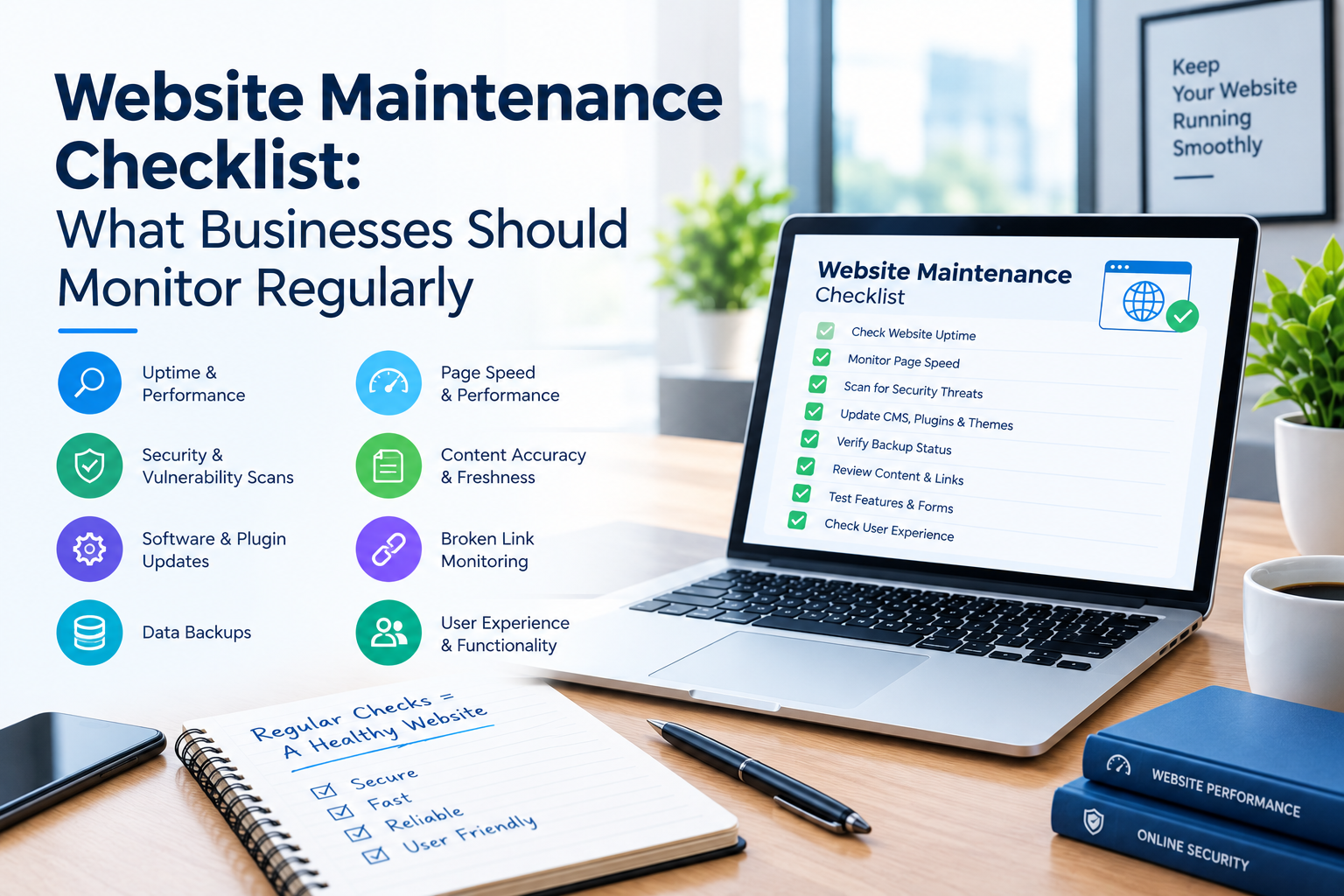
Software Update Checklist
Use this list before releasing an update.
- Review the planned changes.
- Identify affected features.
- Confirm supported browsers and systems.
- Select relevant devices and screen sizes.
- Prepare a staging environment.
- Test key user tasks.
- Check older features.
- Review APIs and connected tools.
- Confirm important data is saved correctly.
- Record issues and fixes.
- Repeat checks after changes.
- Monitor the live application.
Keep the completed list with the release records. It can help the team plan future updates.
How CLOPID Supports Software Maintenance
Regular maintenance helps businesses keep their websites, apps and digital systems working as their needs change.
CLOPID provides Maintenance Services for businesses that need support with websites, applications and business systems.
Depending on the agreed scope, maintenance work may include:
- Reviewing software updates.
- Finding technical issues.
- Checking system performance.
- Reviewing existing features.
- Addressing compatibility concerns.
- Supporting website and application reliability.
The work depends on the system and the support required.
If your business needs help maintaining its digital systems, contact CLOPID to discuss your requirements.
Frequently Asked Questions
1. What is software compatibility testing?
It checks whether a website or application works across its supported browsers, devices, operating systems and connected services.
2. Why is it needed after an update?
An update may affect older features or connected tools. A review helps find these problems before they reach users.
3. What are the main types?
The main types are browser, operating system, device, backward compatibility and integration testing.
4. Is it the same as regression testing?
No. Compatibility testing checks different environments. Regression testing checks whether existing features still work after a change.
5. Can these checks be automated?
Yes. Tools such as Playwright and Selenium can repeat browser tasks. Manual checks are still useful for visual issues and complex tasks.
6. When should businesses perform these checks?
Before major releases, after important updates and when supported browsers, devices or operating systems change.
7. Can testing guarantee error-free software?
No. It cannot find every possible problem. However, it can reduce the risk of releasing errors to users.
8. Which businesses need this process?
Any business that uses websites, mobile apps, desktop software or connected business systems can benefit from it.
Conclusion
Software updates help businesses improve their digital systems. However, they can also affect features that customers and employees already use.
A planned review helps teams check websites and applications across supported browsers, devices and systems.
By using staging environments, regression tests and regular monitoring, businesses can make releases more reliable. A clear maintenance plan also helps technical teams find and fix problems.
References and Further Reading
- MDN Web Docs - Introduction to Cross-Browser Testing - explains browser differences and cross-browser checks.
- MDN Web Docs - Testing Strategies - explains how to select suitable browsers and devices.
- Playwright - Browsers - describes supported browser engines and device emulation.
- Microsoft Learn - Test and Automation in Microsoft Edge - explains browser testing and automation.
- Chrome for Developers - Lighthouse Overview - explains website audits for performance and accessibility.